Before you begin
- A legitimate 25-character key that matches your edition and year.
- An updated Windows PC, a stable connection, and administrator access.
- Close every Office application before installing.
Step 1
Download the LTSC installer
Download the preconfigured package and save the compressed file in an easy-to-find location.
Download LTSC installer ↗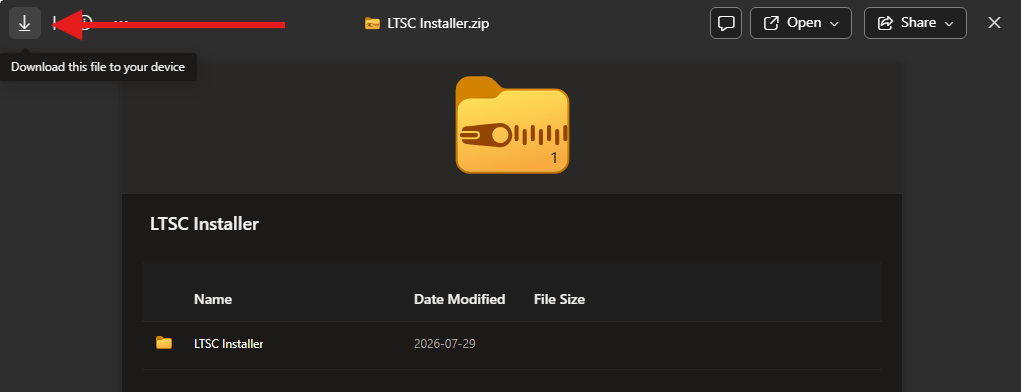
Step 2
Extract the files and run the installer
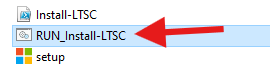
Extract the entire package, then double-click RUN_Install-LTSC. If Windows blocks it, right-click the file and choose Run as administrator.
Step 3
Select the product
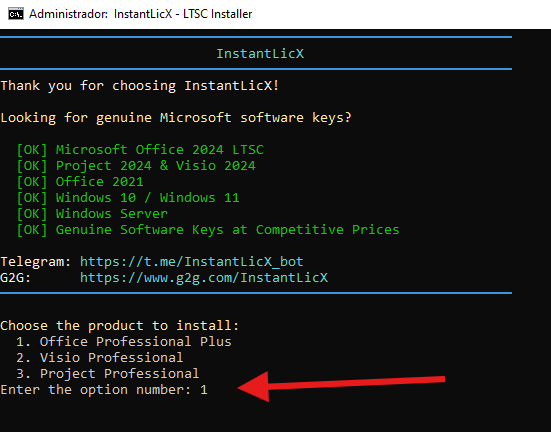
Enter the number for the product you want to install—Office, Visio, or Project—and press Enter.
Step 4
Select the version
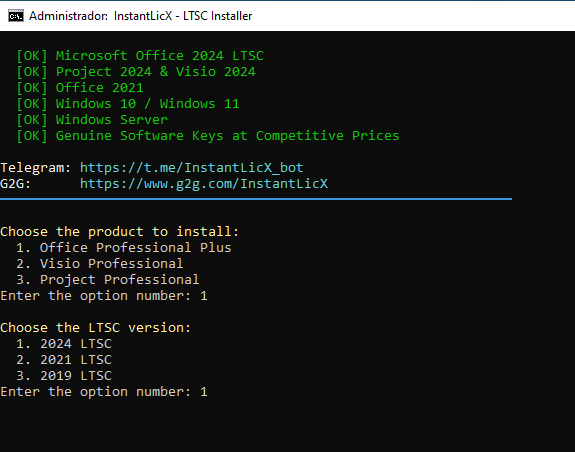
Choose the LTSC year that matches your license: 2019, 2021, or 2024. Enter the option number and press Enter.
Step 5
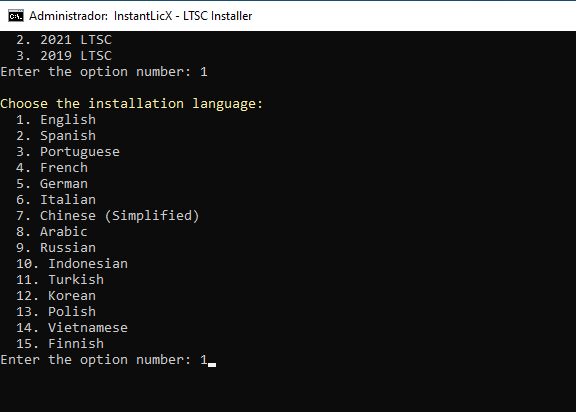
Select the installation language
Choose the installation language by entering its corresponding number, then press Enter.
Step 6
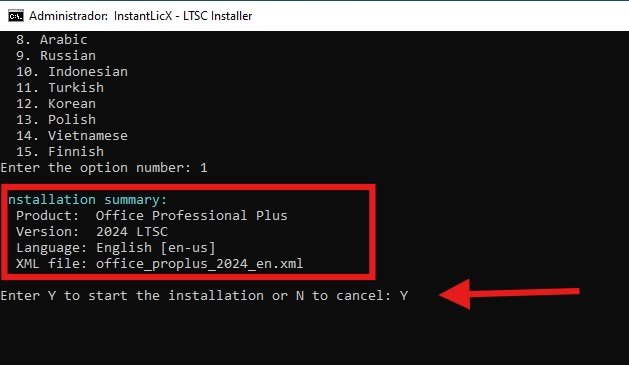
Confirm the installation
Review the product, version, and language summary. Enter an uppercase Y to begin; any other value cancels the installation.
Step 7
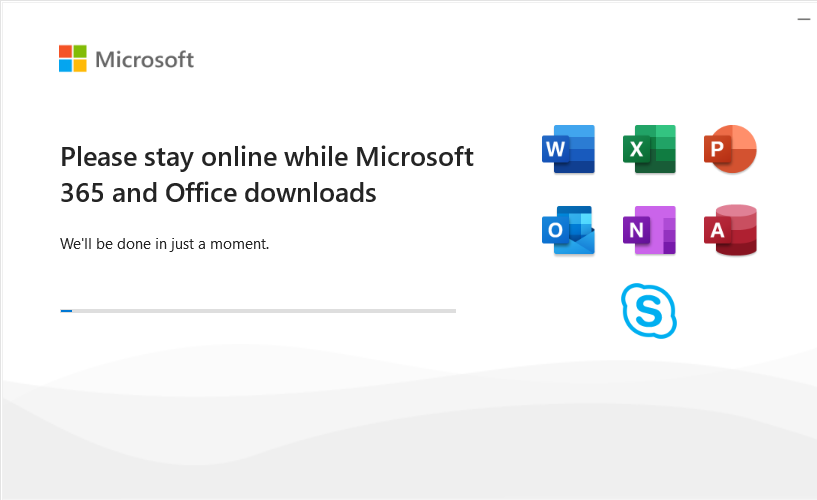
Wait for installation to finish
Keep the computer connected to the Internet and do not close the installer while Office downloads and installs.

Step 8
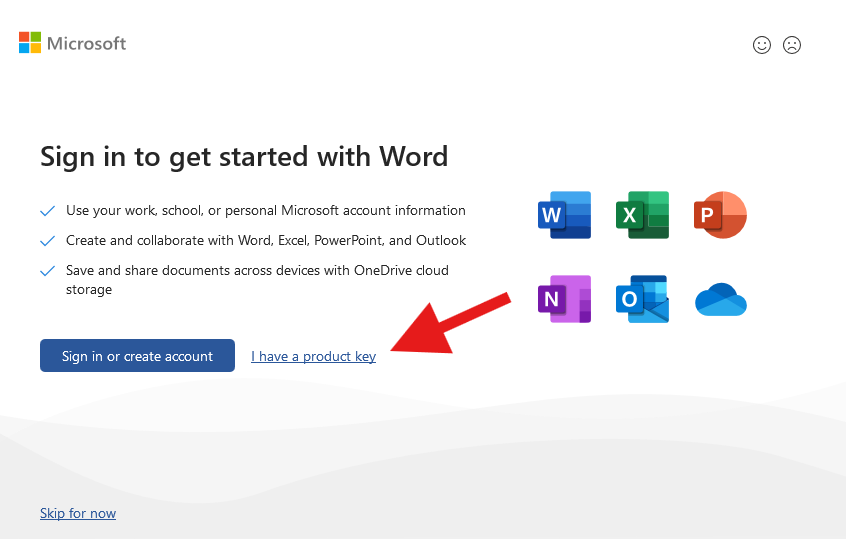
Open the app and enter your key
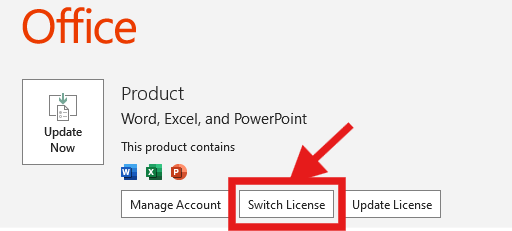
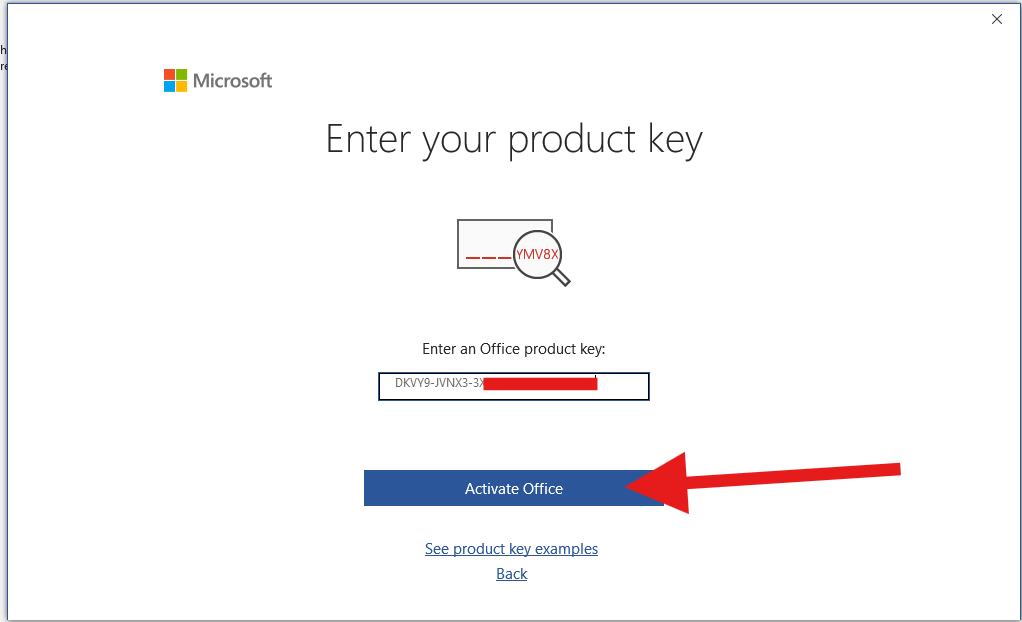
Open Word, Project, or Visio. Choose I have a product key or go to File → Account → Switch License. Enter all 25 characters, close every app, and reopen the product.
Step 9
Choose telephone activation and copy the Installation ID
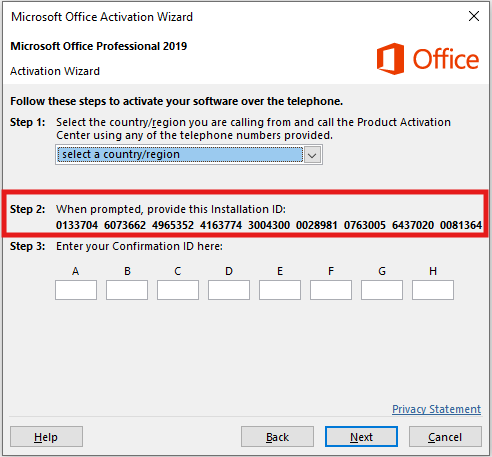
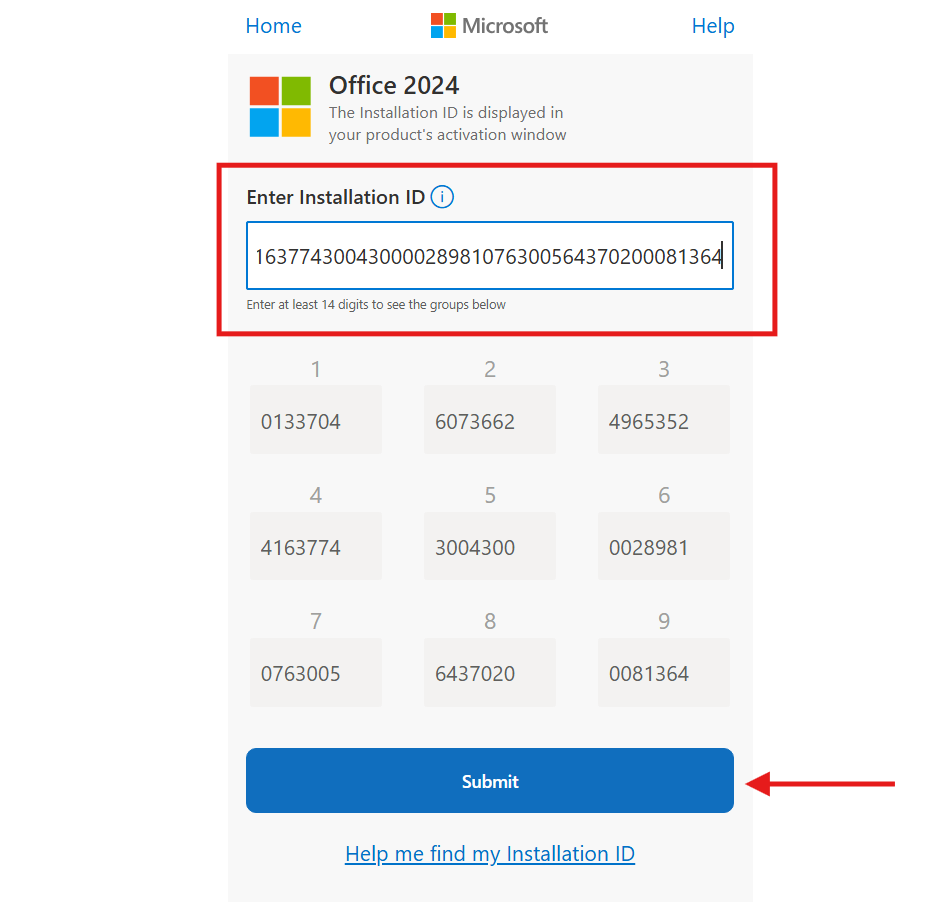
In the wizard, select I want to activate the software by telephone. Choose your country or region and copy every Installation ID group in the displayed order.
Telephone activation is not available for every edition, key, region, or subscription.

Step 10
Obtain the Confirmation ID
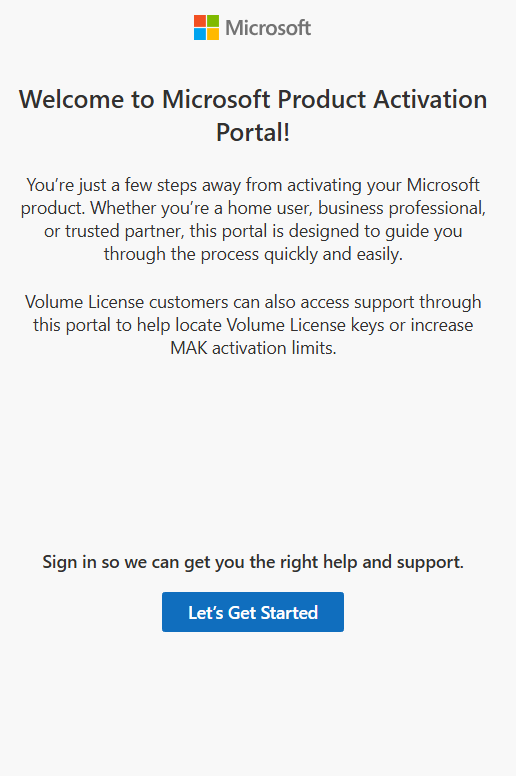
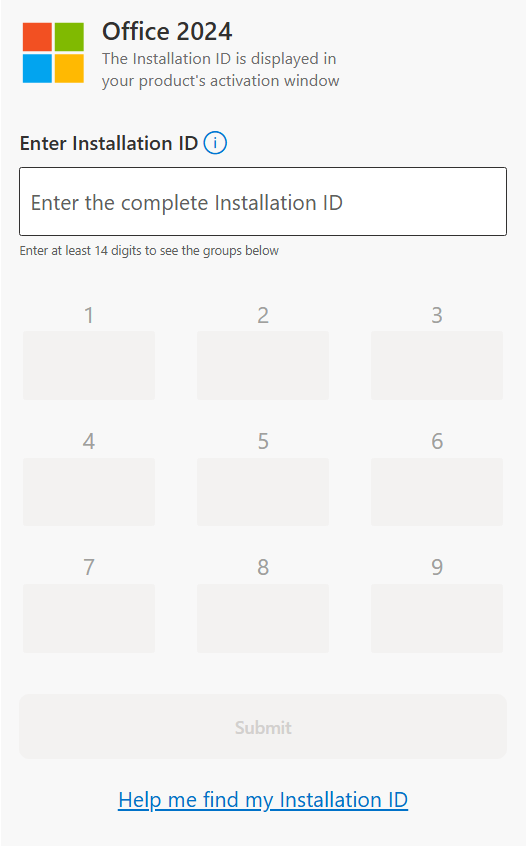
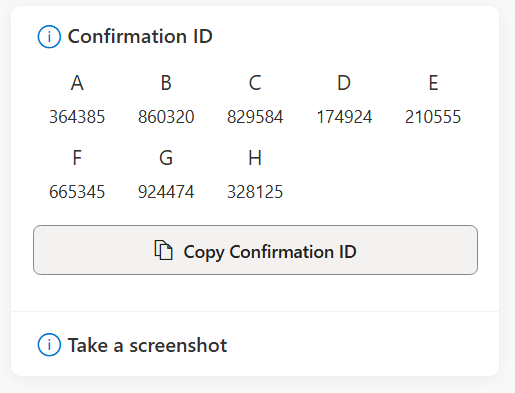
Open Microsoft’s official product activation portal, sign in, choose product activation, and select the correct year. Enter every Installation ID group and copy the Confirmation ID returned by the portal.
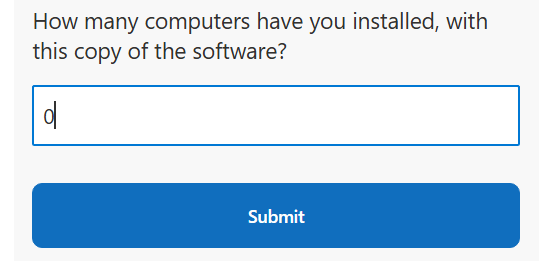
If the portal asks how many computers use this copy and this is a new activation, enter 0.

Step 11
Enter the Confirmation ID and finish
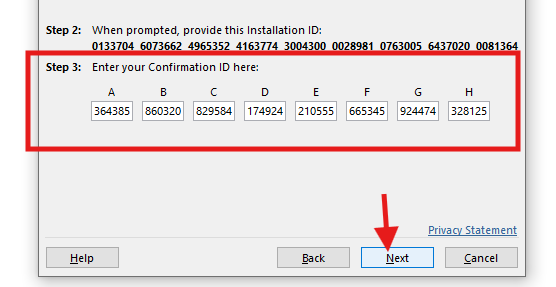
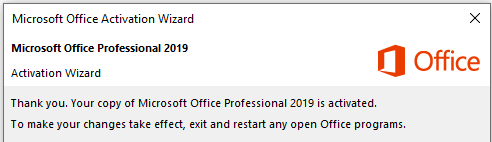
Return to the Activation Wizard and enter each Confirmation ID group in its matching box, A through H. Choose Next or Finish, then check File → Account for Product Activated.
Quick help
Troubleshooting
- Make sure the installed LTSC product, edition, and year match the product key.
- Check that the complete product folder is directly in the root of C: or D:.
- Remove incompatible Office editions before reinstalling LTSC.
- Verify that the Installation ID and Confirmation ID groups were copied in the correct order.
- If setup still fails after Windows is fully updated, test on a clean Windows installation.
Verified sources