Proceed carefully
- Close every Office application before running the cleanup.
- Review each result and keep any valid license you still use.
- The tool requires administrator permission.
Step 1
Download and extract the tool
Download the cleanup archive, save it in an easy-to-find folder, and extract all of its contents before running it. Close Word, Excel, Project, and Visio.
Download cleanup tool ↗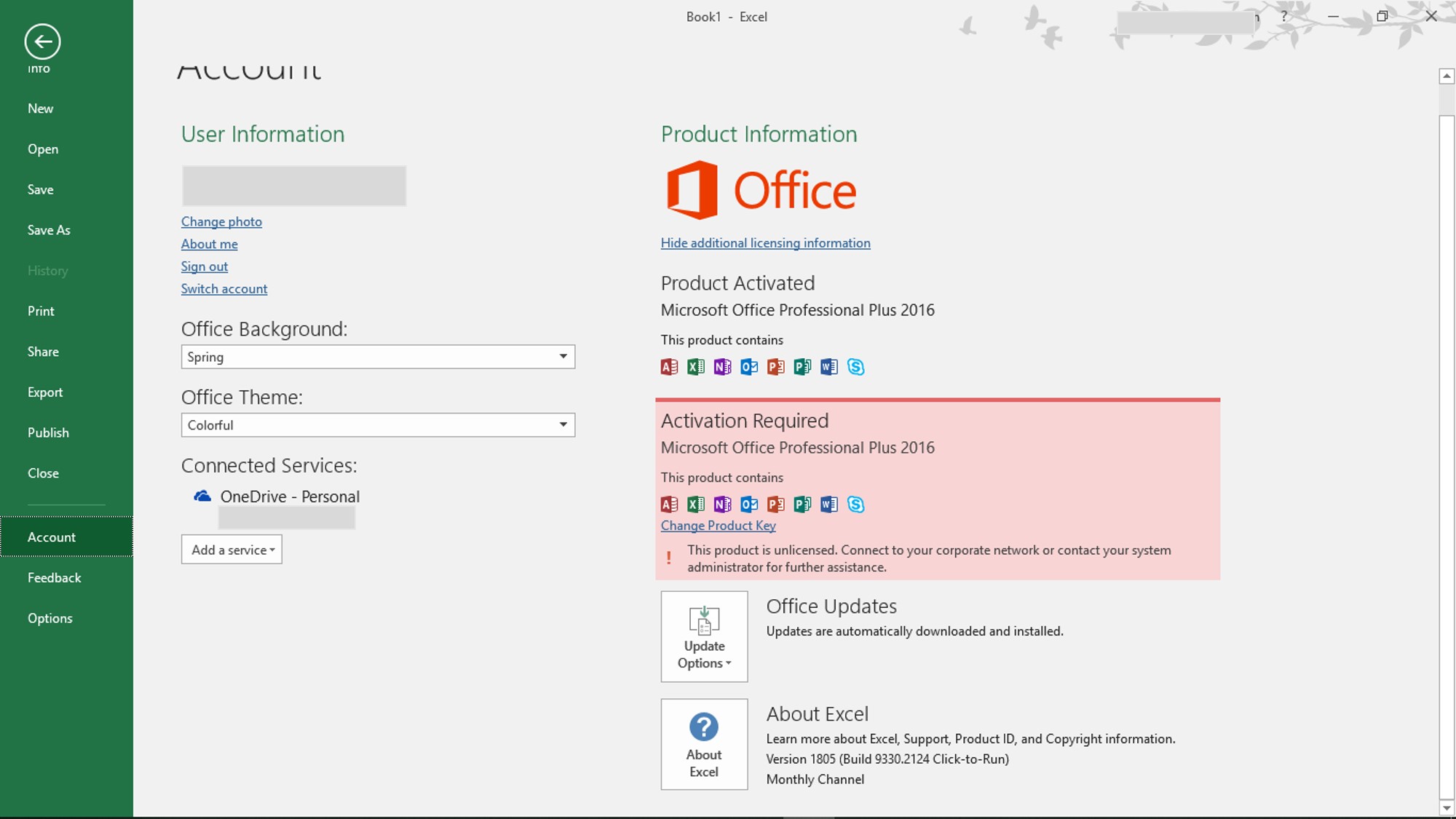
Step 2
Run the cleanup script
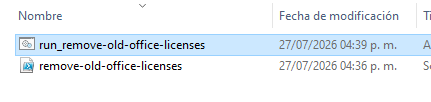
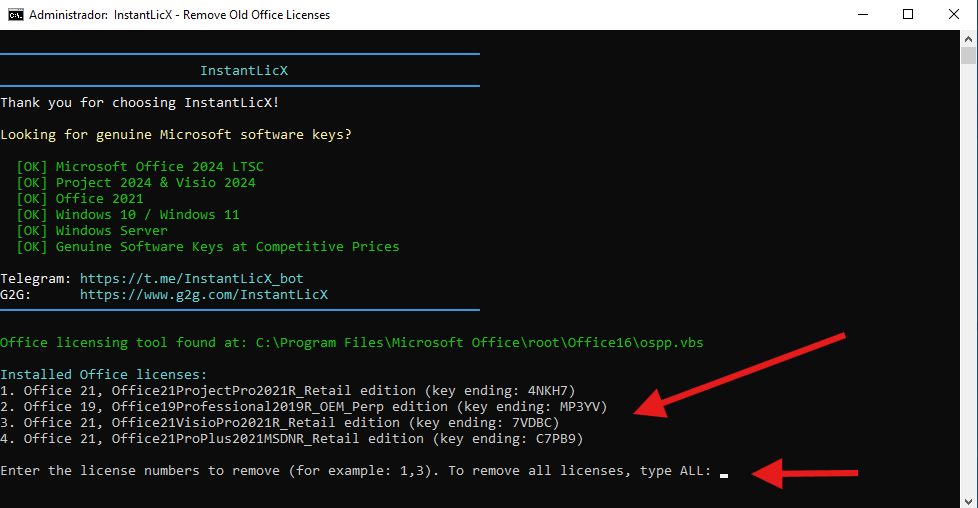
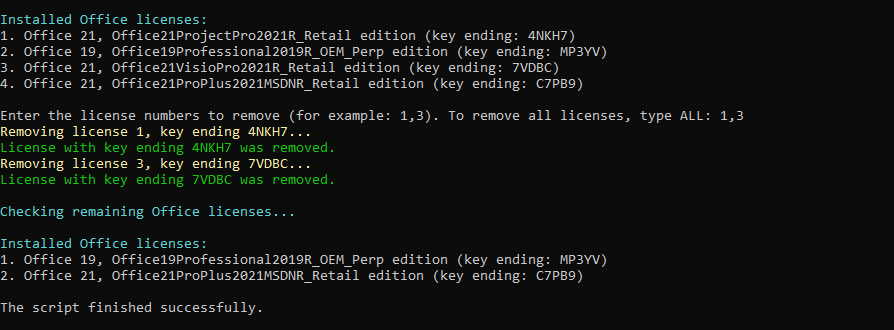
Open the extracted folder and run run_remove-old-office-licenses. Approve the administrator prompt. The tool scans installed Office, Visio, and Project licenses.
Step 3
Select the licenses to remove
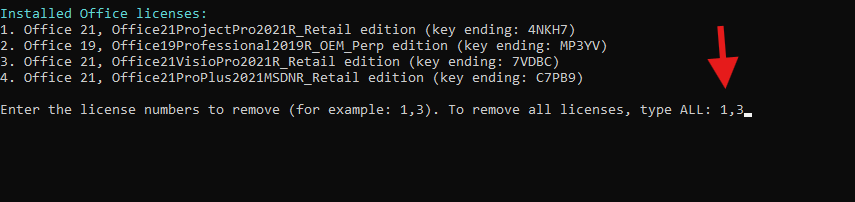
Review every entry and type its numbers separated by commas, for example 1,3. Use ALL only when you are completely certain that none of the listed licenses should remain.
Do not remove a valid license or one linked to another product you still use.
Step 4
Wait for cleanup to finish
Keep the window open while the selected entries are removed. Before closing it, confirm that the tool reports that the process finished successfully.
Step 5
Restart and install your new license
Restart Windows, open the correct product, and enter the new key from File → Account. If Office LTSC is not installed yet, continue with our installation and activation guide.
If you already uninstalled Office, install the new version first, run this cleanup before entering the key, and then complete activation.
Verified sources